
Stop the Slouch with a Perfect Adjustable Monitor Arm Setup
Why Your Adjustable Monitor Arm Setup Is the First Step to a Pain-Free Workday
An adjustable monitor arm setup involves mounting your monitor on a flexible, adjustable arm attached to your desk — replacing the fixed stand your monitor came with.
Here’s the quick version of how to set one up:
- Check compatibility — confirm your monitor has VESA holes (75x75mm or 100x100mm) and note its weight without the stand
- Choose your mount type — desk clamp, grommet, or wall mount depending on your desk
- Install the base — attach the clamp or grommet mount firmly to your desk edge
- Assemble the arm — connect the arm sections and attach the VESA plate to your monitor
- Mount the monitor — hang it on the arm and lock it in place
- Adjust tension and position — tune the gas spring and set the screen at eye level, about an arm’s length away
Sound familiar? You sit down to work, and within an hour your neck aches, your shoulders are tight, and your eyes are straining to focus. The culprit is often hiding in plain sight — a monitor sitting too low, too close, or at the wrong angle on its original plastic stand.
A monitor positioned too low forces you to hunch forward. Too far away, and your eyes work overtime to focus. Over time, these small daily stresses add up to real discomfort — and lost productivity.
The good news: this is one of the easiest workspace problems to fix.
A quality monitor arm lets you position your screen exactly where your body needs it — at the right height, distance, and angle. It also frees up desk space and eliminates cable clutter, turning a chaotic surface into a clean, focused environment.
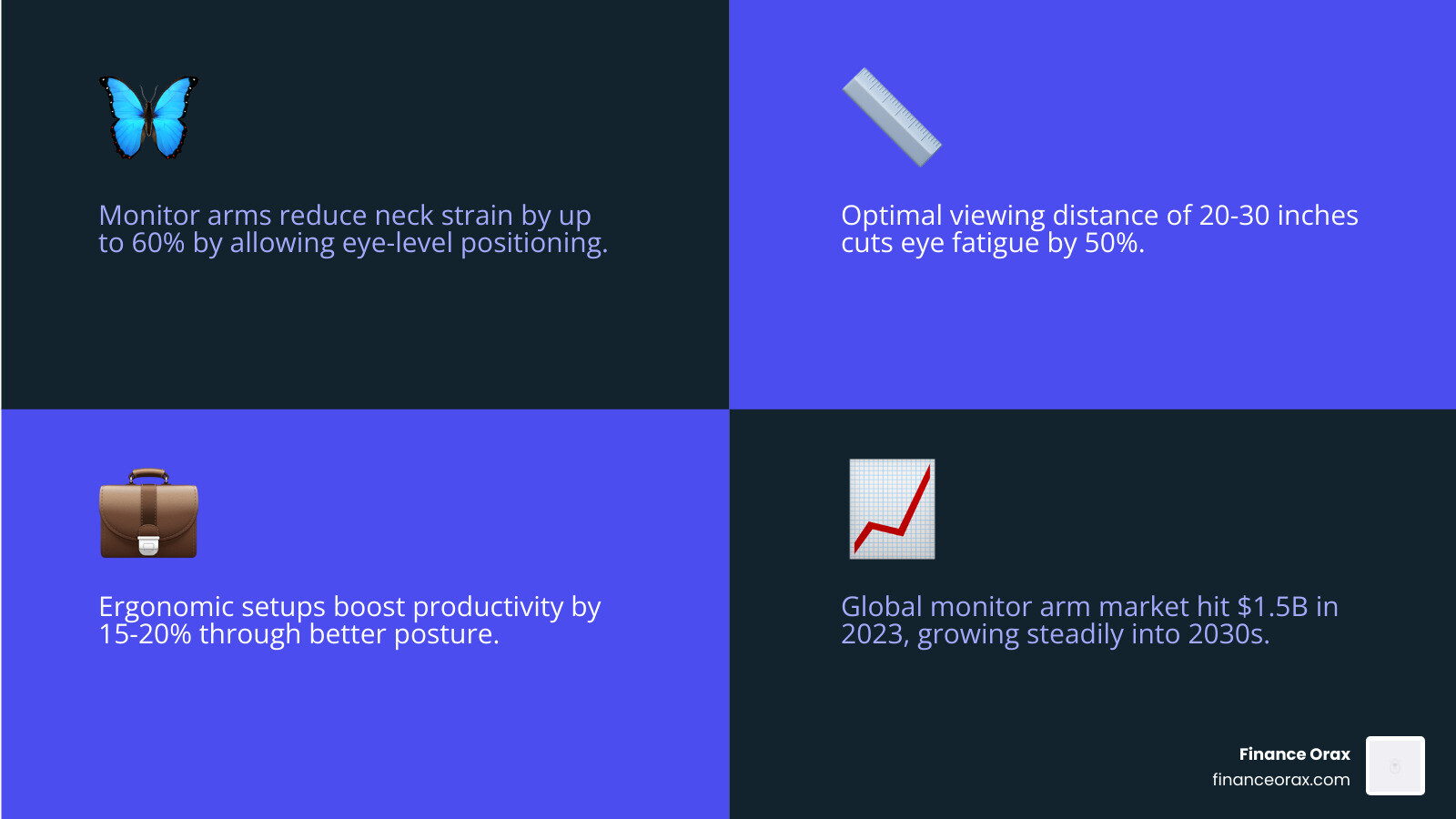
The market agrees. The global monitor arm market was valued at around USD 1.5 billion in 2023, with steady growth projected well into the 2030s — a clear sign that more people are taking their workspace ergonomics seriously.
This guide walks you through everything: compatibility checks, installation steps, tension calibration, multi-monitor setups, and long-term maintenance.
Essential Pre-Installation Compatibility Checks
Before we dive into the fun part of mounting your screen, we need to ensure your gear is actually ready for the transition. Nothing kills the excitement of a workspace upgrade faster than realizing your monitor doesn’t have the right holes or your desk is too thin to support the weight. At Finance Orax, we believe that proper preparation is the antidote to frustration.
Verifying VESA and Weight Limits
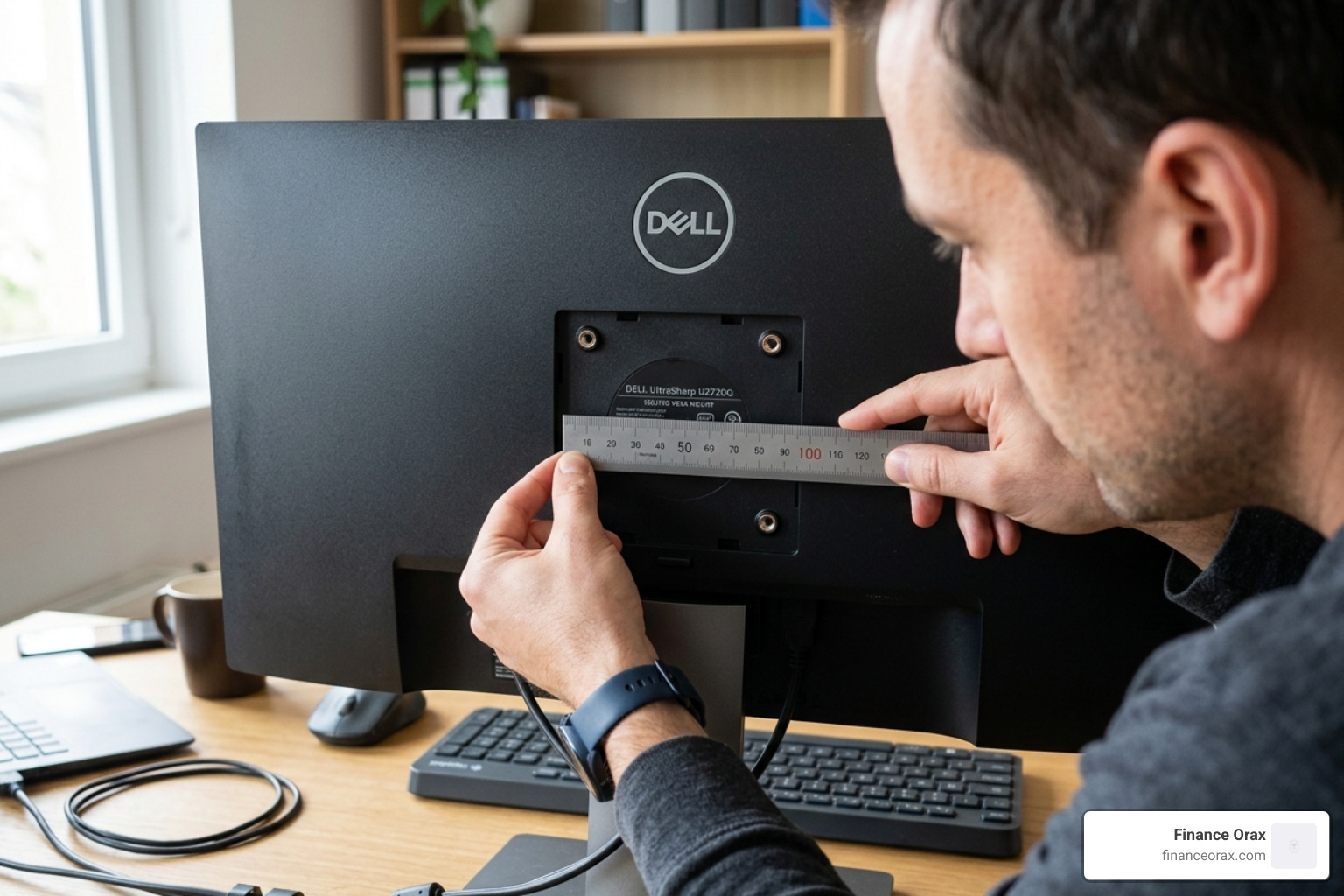
The most critical factor in any adjustable monitor arm setup is VESA compatibility. VESA (Video Electronics Standards Association) is the industry standard for the hole patterns on the back of your monitor.
- Standard Patterns: Most monitors use either a 75x75mm or 100x100mm square pattern.
- How to Check: Look at the back of your monitor. If you see four screw holes in a square, you’re likely good to go. If there are no holes, you may need a non-VESA adapter bracket.
- Weight Capacity: Check your monitor’s weight without its original stand. Most arms support between 4.4 lbs and 19.8 lbs, though heavy-duty models can handle 30 lbs or more. If your monitor is too light, the arm might pop up; if it’s too heavy, it will sag.
For a deeper dive into the technicalities, check out our Step-by-Step Guide to Attach a Monitor Arm.
Assessing Desk Material and Thickness
Your desk is the foundation of this entire operation. We need to make sure it won’t crack or warp under the concentrated pressure of a clamp.
- Solid Wood & Metal: These are the gold standards. They can handle the “torque” (the twisting force) of a monitor arm easily.
- Particle Board/MDF: Be careful here. If your desk is hollow or made of thin pressed wood, the clamp might crush the material. We recommend using a reinforcement plate to distribute the pressure.
- Glass Desks: Proceed with extreme caution. We generally advise against using a standard C-clamp on tempered glass as it can cause stress fractures. A grommet mount (through a pre-drilled hole) is safer, but check your desk manufacturer’s guidelines first.
- Thickness: Most clamps require a desk thickness between 0.4 inches and 3.3 inches.
Required Tools:
- Phillips head screwdriver
- Allen wrenches (usually included in the box)
- Measuring tape
- A level (to ensure your screen isn’t crooked)
- A drill (only if you are using a grommet mount)
Selecting the Right Mounting Method for Your Desk
There isn’t a “one size fits all” when it comes to mounting. The choice depends entirely on your furniture and how much “permanent” change you’re willing to make. For more context on choosing the right support, see The Ultimate Long-Form Guide to Choosing and Using a Monitor Stand.
Clamp vs. Grommet vs. Wall Mounts
- C-Clamp Mount: This is the most popular choice for an adjustable monitor arm setup. It slides over the edge of your desk and tightens with a knob. It’s non-permanent, easy to move, and requires zero drilling.
- Grommet Mount: If your desk has a cable hole (grommet), you can secure the arm through it. This provides superior stability and allows you to mount the arm further away from the desk edge, which is great for deep desks.
- Wall Mount: The ultimate space-saver. By attaching the arm directly to a wall stud, you reclaim 100% of your desk surface. However, this requires a stud finder and leaves permanent holes in your wall.
Step-by-Step Adjustable Monitor Arm Setup
Ready to build? Let’s get that screen into the air. We recommend clearing your workspace entirely before starting to prevent any “oops” moments with your expensive hardware.
Installing the Base and Arm Sections
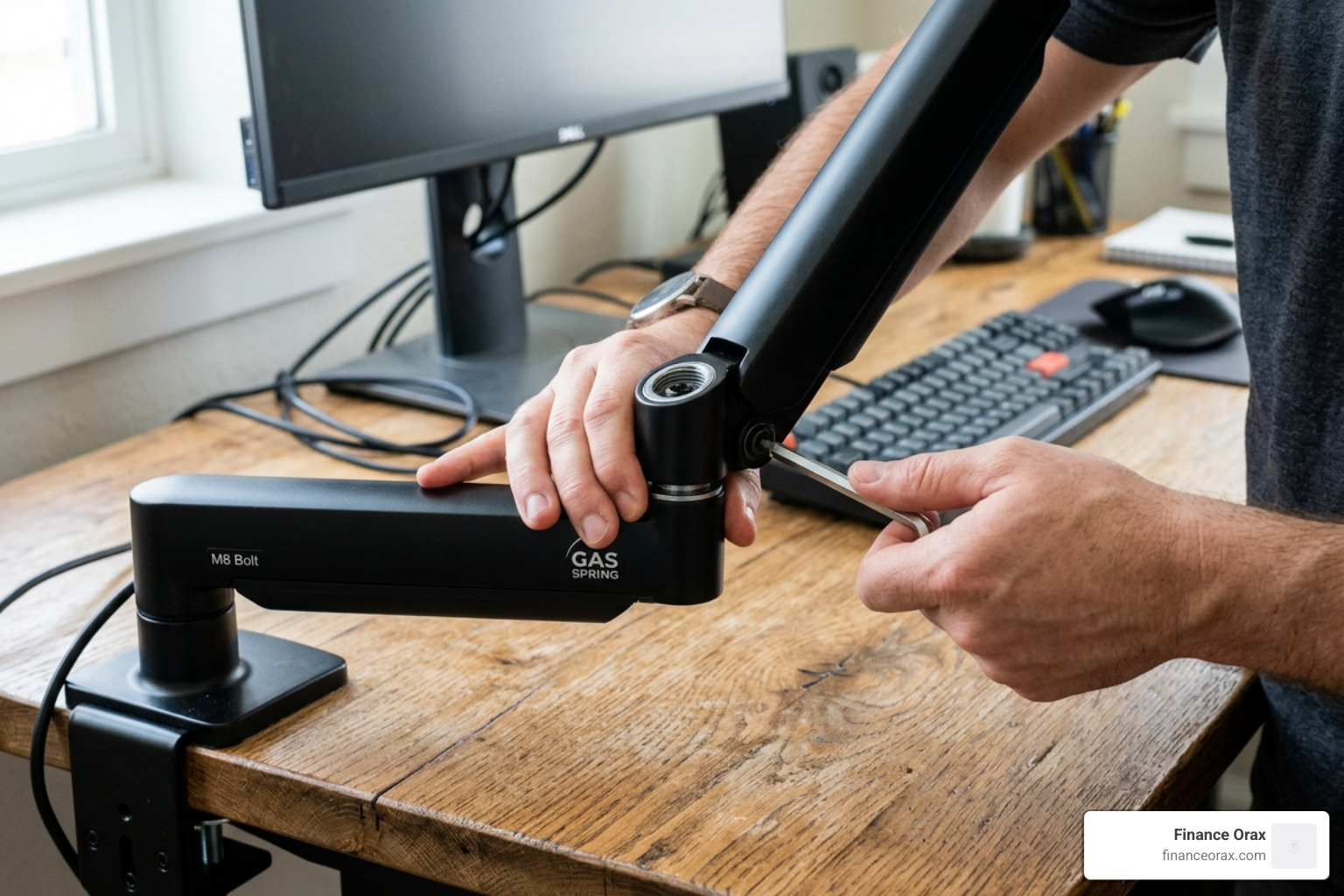
Start with the base. If you’re using a C-clamp, position it on the desk and tighten the knob until it’s snug. Expert Tip: Don’t over-tighten to the point of hearing the wood groan, but ensure there’s no wiggle when you tug on it. Most quality mounts include polyurethane padding to protect the desk surface; if yours didn’t, a small piece of rubber or thin wood can act as a buffer.
Once the base is secure, drop the lower arm section into the base pole. Some models have a small “grub screw” at the joint—tighten this slightly to prevent the arm from lifting out, but leave it loose enough for the arm to swivel. Repeat this for the upper arm section.
Attaching the VESA Plate and Monitor
Now, lay your monitor face-down on a soft surface (like a towel or your bed) to avoid scratches.
- Remove the Stand: Unscrew or unclip the original monitor stand.
- Attach the Plate: Place the VESA plate over the holes on the back of the monitor.
- Check Screw Length: Use the provided screws. If the screws are too long, use the plastic spacers included in the kit. Warning: Forcing a screw that is too long can puncture the internal components of your screen.
- The “Hang”: Most modern arms use a “slide-on” or “clip-in” mechanism. Carefully lift the monitor and slide the VESA plate into the bracket at the end of the arm. You should hear a click or be able to engage a locking tab.
Calibrating Tension for Effortless Movement
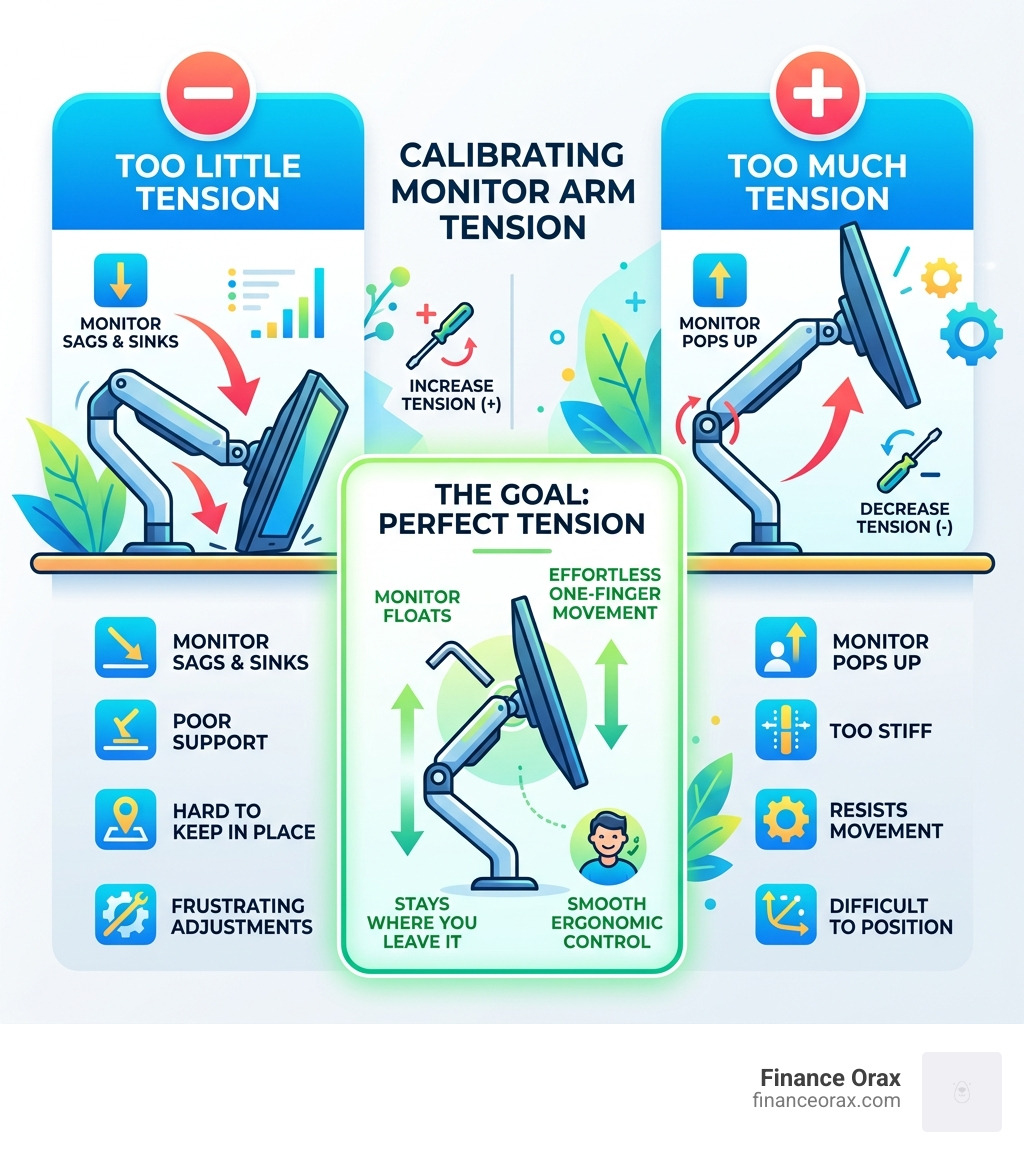
This is where many people get frustrated, but it’s actually the most satisfying part of the adjustable monitor arm setup. If your monitor immediately sinks to the desk or shoots up toward the ceiling, your tension is off.
Perfecting the Adjustable Monitor Arm Setup for Ergonomics
Before we twist any screws, let’s talk about where that monitor should actually live. As of April 2026, ergonomic standards emphasize the “Neutral Reach Zone.”
- Eye Level: The top third of your screen should be at eye level. This keeps your neck in a neutral position, preventing the “tech neck” slouch.
- Viewing Distance: Position the screen about an arm’s length away (20–30 inches). If you can high-five your screen, it’s probably too close.
- Tilt: A slight upward tilt of 10–20 degrees helps reduce glare and mimics the natural way we read paper.
For more professional advice, see our Professional guide to tension adjustment.
Adjusting Gas Spring and Piston Tension
Most premium arms use a gas spring or mechanical piston. To adjust this, you’ll find a screw (usually an Allen head) on the top or side of the arm joint.
- If the monitor sags: Turn the screw toward the “+” (plus) symbol (usually clockwise). This increases the tension to support the weight.
- If the monitor pops up: Turn the screw toward the “-” (minus) symbol (usually counter-clockwise). This decreases the tension.
- The Goal: You want the monitor to “float.” You should be able to move it with one finger, and it should stay exactly where you leave it.
Advanced Multi-Monitor and Cable Management Strategies
If you’re a developer, trader, or hardcore multitasker, one screen simply isn’t enough. Managing two or more monitors requires a bit more strategy to avoid a “wall of glass” that feels overwhelming.
Dual and Stacked Monitor Configurations
| Feature | Single Arm | Dual Arm (Side-by-Side) | Stacked Layout |
|---|---|---|---|
| Desk Space | Minimal footprint | Reclaims ~2 sq ft | Best for narrow desks |
| Ergonomics | Primary focus | Great for multitasking | Reduces neck swivel |
| Best Use Case | General office work | Coding / Research | Video Editing / Monitoring |
| Flexibility | High | Medium (arms can collide) | High vertical range |
For dual setups, we recommend aligning the top edges of the monitors. If you use one primary and one secondary, angle the secondary monitor inward to reduce eye travel. Stacked setups are becoming increasingly popular in 2026 for those with limited desk width but plenty of vertical “air rights.”
Routing Cables for a Clutter-Free Workspace
A “floating” monitor looks a lot less magical when a nest of black cables is dangling underneath it.
- Integrated Channels: Most arms have plastic covers or clips. Route your power and display cables through these.
- The “Service Loop”: This is crucial! Leave a bit of slack (a loop) at the joints. If the cables are too tight, you won’t be able to move the monitor without unplugging something or, worse, damaging your ports.
- Standing Desks: If you have a sit-stand desk, ensure the cables are long enough to reach the floor when the desk is at its highest point.
Troubleshooting and Long-Term Maintenance
Even the best adjustable monitor arm setup needs a check-up every now and then. Over months of movement, screws can loosen and tension can shift.
Fixing Sagging and Wobbling Issues
- Wobble: This usually stems from the base. Check the C-clamp knob; it may have settled into the wood and need a quarter-turn to tighten.
- Tilt Sag: If your monitor keeps tilting down to look at your keyboard, tighten the bolt directly behind the VESA plate. This joint often requires more torque than the others.
- Desk Stability: If your whole desk wobbles when you type, the monitor arm will amplify that movement. Ensure your desk is level and consider adding a cross-bar or wall-tether if the desk itself is flimsy.
Maintaining Your Adjustable Monitor Arm Setup Long-Term
- Quarterly Inspections: Every three months, give the arm a “stress test.” Move it through its full range of motion. If you hear squeaking, a tiny drop of silicone lubricant on the pivot points works wonders.
- Check for Fatigue: Look for any signs of metal fatigue or bowing in the desk material.
- Dust the Ports: While you have the freedom to move your screen, pull it forward and use some compressed air to clean the ports. Dust buildup can lead to flickering screens.
Frequently Asked Questions about Monitor Arm Setup
Will a monitor arm damage my desk?
Not if you use it correctly! Quality arms use rubber padding to distribute pressure. If you have a desk made of honeycomb cardboard (like some budget Swedish furniture), use a reinforcement plate to prevent the clamp from punching through.
How do I know if my monitor is VESA compatible?
Check the back for four screw holes in a square. If you see a plastic cover, pop it off—the holes are often hidden underneath. Most monitors from the last decade are 75mm or 100mm compatible.
Can I mount an ultrawide or curved monitor?
Yes, but you must pay close attention to the weight capacity. Ultrawide monitors are significantly heavier and put more leverage on the tilt joint. Look for “heavy-duty” arms specifically rated for 34-inch to 49-inch screens.
Conclusion
At Finance Orax, we believe your workspace should be a tool that supports your goals, not a source of physical pain. Upgrading to an adjustable monitor arm setup is more than just a decor choice; it’s a commitment to your long-term health and focus. By reclaiming your desk space and aligning your technology with your body’s natural posture, you create a routine that fosters productivity and calm.
Ready to transform the rest of your home office? We’re here to help you build a setup that works as hard as you do. For more tips on holistic routine-building and workspace decor, visit us for more info about lifestyle setups. Stop the slouch, lift your screen, and get back to doing your best work!
