
How to Build a WFH Setup That Actually Works
Why Your WFH Setup Decides How Well You Actually Work
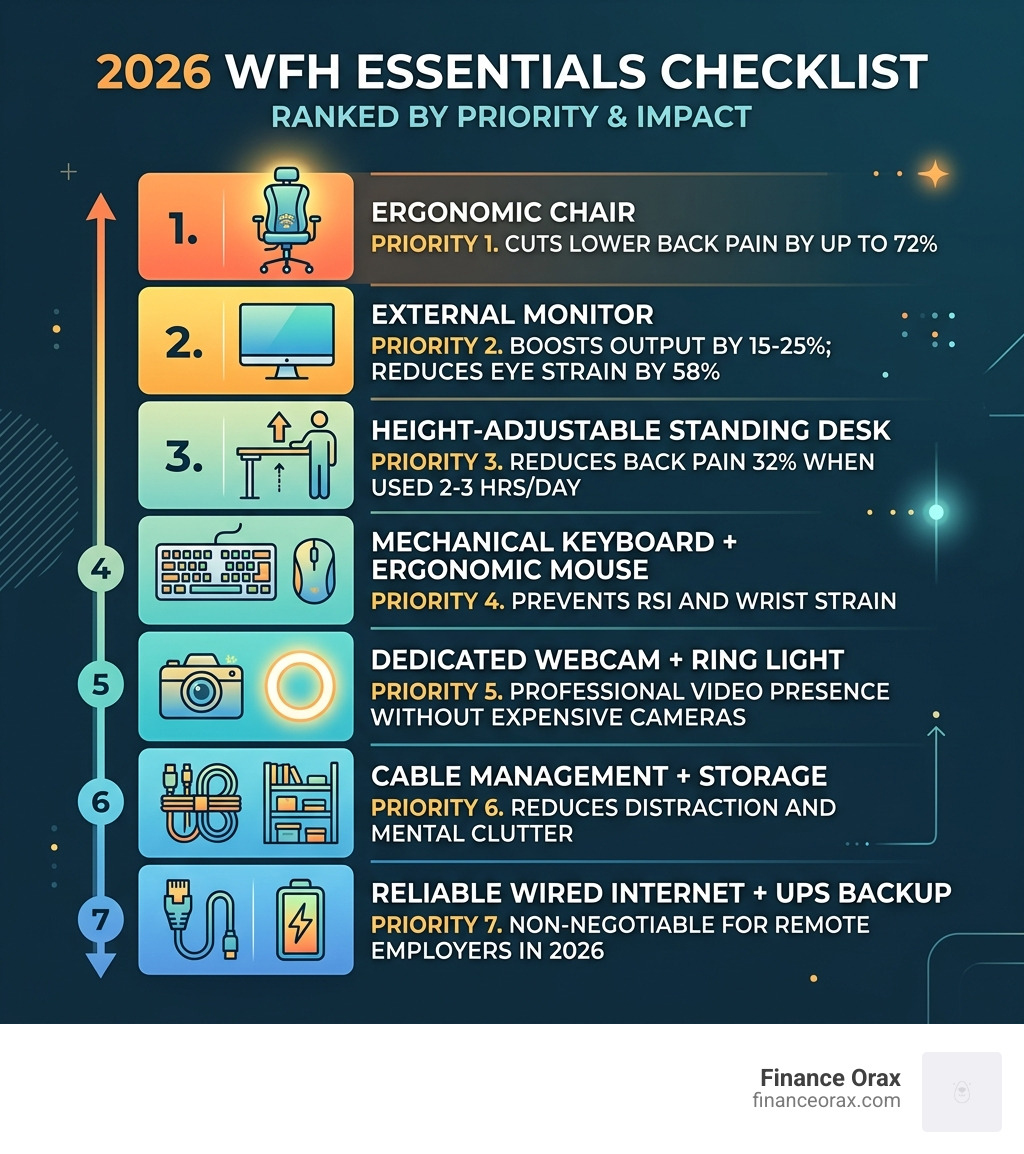
Building the best wfh setup doesn’t have to be complicated — here’s what matters most:
The essentials for a productive WFH setup in 2026:
| Priority | Component | Why It Matters |
|---|---|---|
| 1 | Ergonomic chair with lumbar support | Cuts lower back pain by up to 72% |
| 2 | External monitor at eye level | Boosts output by 15–25%; reduces eye strain by 58% |
| 3 | Height-adjustable standing desk | Reduces back pain 32% when used 2–3 hrs/day |
| 4 | Mechanical keyboard + ergonomic mouse | Prevents RSI and wrist strain |
| 5 | Dedicated webcam + ring light | Professional video presence without expensive cameras |
| 6 | Cable management + storage | Reduces distraction and mental clutter |
| 7 | Reliable wired internet + UPS backup | Non-negotiable for remote employers in 2026 |
Working from home sounds like the dream. No commute. No open-plan noise. Full control over your environment.
But here’s the reality: 73% of remote workers report back or neck pain from a poor setup. Many are working from a kitchen table, a cheap chair, or a laptop screen that’s slowly destroying their posture — and their focus.
Your workspace isn’t just furniture. It’s a productivity tool. Every element either costs you energy or saves it.
The good news? You don’t need to spend a fortune. A thoughtful setup — even on a $500 budget — outperforms an expensive but disorganized one every time. And the return is real: remote workers who invest in ergonomic equipment have been shown to earn an average of 22% more over three years than those who don’t.
This guide walks you through everything — from the chair you sit in for 1,500+ hours a year, to the lighting that shapes how colleagues perceive you on calls, to the cables you’ll finally stop tripping over.
The Foundation of the Best WFH Setup
When we talk about the best wfh setup, we aren’t just talking about a desk and a chair. We are talking about the foundation of your physical health. Research shows that workers’ compensation claims for remote employees have risen 31% since 2022, primarily due to carpal tunnel and lower back strain. To avoid becoming a statistic, we need to focus on ergonomics first.
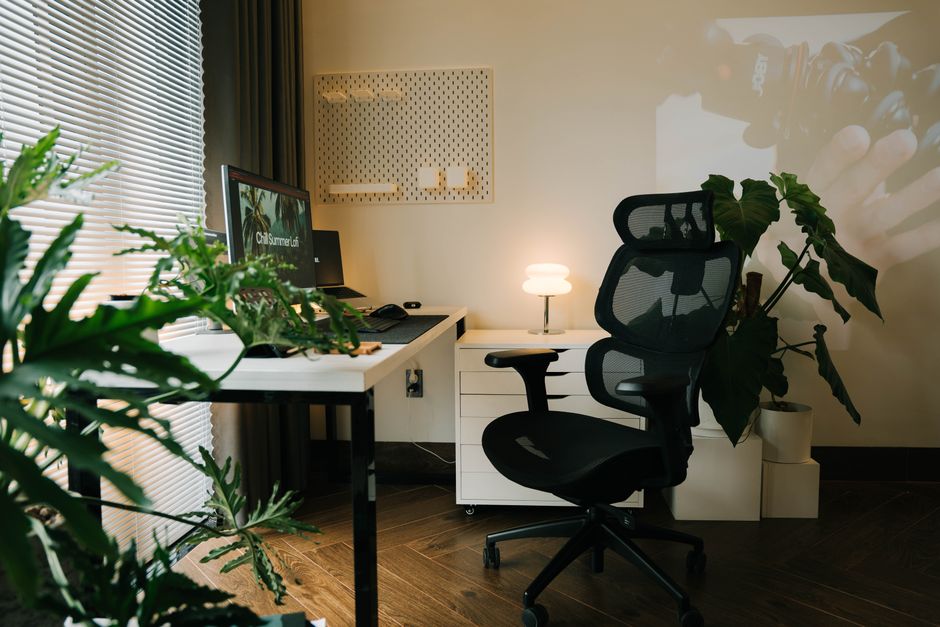
The “90-90-90 rule” is our golden standard for pelvic alignment and comfort. Your ankles, knees, and hips should all be at 90-degree angles, with your feet resting flat on the floor. If your feet dangle, you’re putting massive pressure on your lower back.
A high-quality ergonomic chair is arguably the most important investment you will make. We recommend looking for features like:
- Adjustable lumbar support: Ideally, a system that follows your spine’s natural curve as you move.
- Breathable mesh: This prevents heat buildup during those 8-hour sessions.
- Weight capacity and durability: Quality chairs are built to last a decade, not just a season.
Beyond the chair, the “sit-stand” revolution is here to stay. Standing for just 2–3 hours a day can reduce back pain by 32% without slowing down your typing speed. However, the secret isn’t just standing—it’s micro-movements. The best setups encourage you to shift your posture frequently. For a deeper dive into professional configurations, check out this Best Home Office Setups for Remote Professionals- Full Guide.
Choosing the Best WFH Setup for Your Posture
If you feel like you’re constantly slouching, your monitor height is likely the culprit. Proper monitor height alone reduces eye strain by 58%. The top of your screen should be at or slightly below eye level so you aren’t tilting your head up or down.
We also swear by the 20-20-20 rule: every 20 minutes, look at something 20 feet away for 20 seconds. This simple habit, paired with a monitor arm that allows for precise height adjustments, can eliminate the “tech neck” that plagues so many remote professionals. If your desk is too high and your feet don’t reach the floor, a firm footrest is a non-negotiable addition to maintain that 90-degree knee angle.
Peripherals for the Best WFH Setup
Your keyboard and mouse are your primary interfaces with your work. Standard flat keyboards force your wrists into an unnatural position. Switching to a split keyboard or a “wave” shaped layout promotes a more natural hand posture and reduces wrist deviation.
For the mouse, we recommend a vertical mouse. It places your hand in a “handshake” position, which prevents the forearm twisting that leads to Repetitive Strain Injury (RSI). Look for a mouse with “glass-tracking” if you prefer working without a mousepad and “multi-device pairing” if you frequently switch between a work laptop and a personal PC.
Maximizing Productivity with High-End Tech
Once your body is supported, it’s time to look at the “engine” of your best wfh setup. In 2026, 16GB of RAM is the absolute baseline for office work, though 32GB is preferred if you’re running local AI tools or heavy data sets.
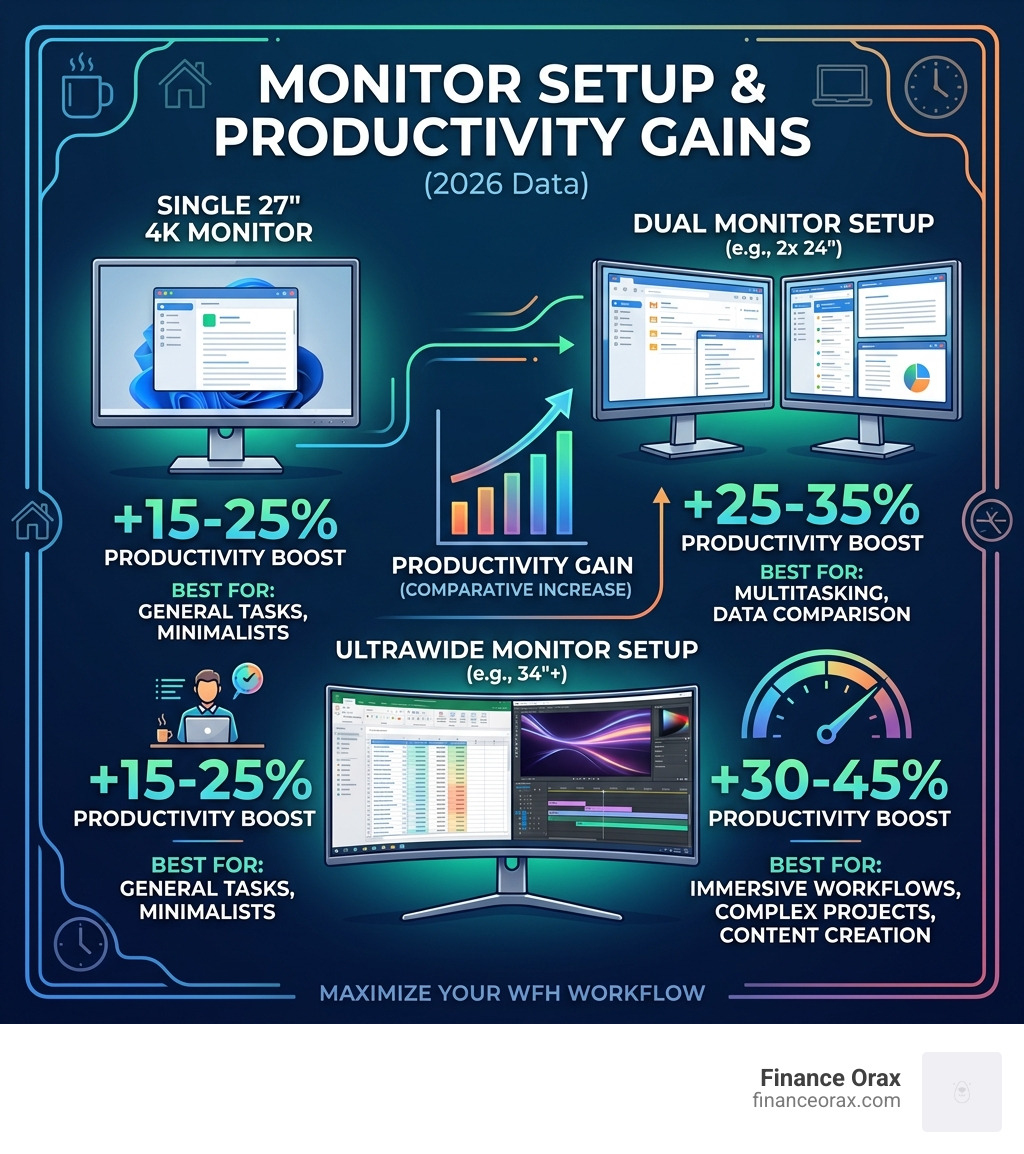
The debate between single, dual, and ultrawide monitors is settled: more screen real estate equals more speed.
| Setup Type | Productivity Gain | Best For |
|---|---|---|
| Single 27″ 4K | +15-25% | General tasks, minimalists |
| Dual Monitors | +42% | Multitasking, coding, data analysis |
| 34″ Ultrawide | +35% | Video editing, immersive workflows |
A single 32-inch 4K monitor is our recommended minimum to avoid blurry text. However, many professionals now prefer a “near-square” 16:18 monitor as a second screen for chat apps and code, as it reduces the neck strain caused by extreme horizontal scanning on ultrawides.
To keep everything connected, we recommend a Thunderbolt 4 or 5 dock. Cheap USB-C dongles often bottleneck your display resolution and fail to provide enough power to charge your laptop. A true Thunderbolt dock allows for a “one-cable setup,” where a single plug handles your power, monitors, and peripherals. Pair this with a Wi-Fi 7 router for the lowest possible latency during those critical 4K video calls.
Professional Audio, Video, and Lighting
In a remote world, your video quality is your professional “handshake.” You don’t need a $2,000 DSLR to look good; you just need to understand lighting.
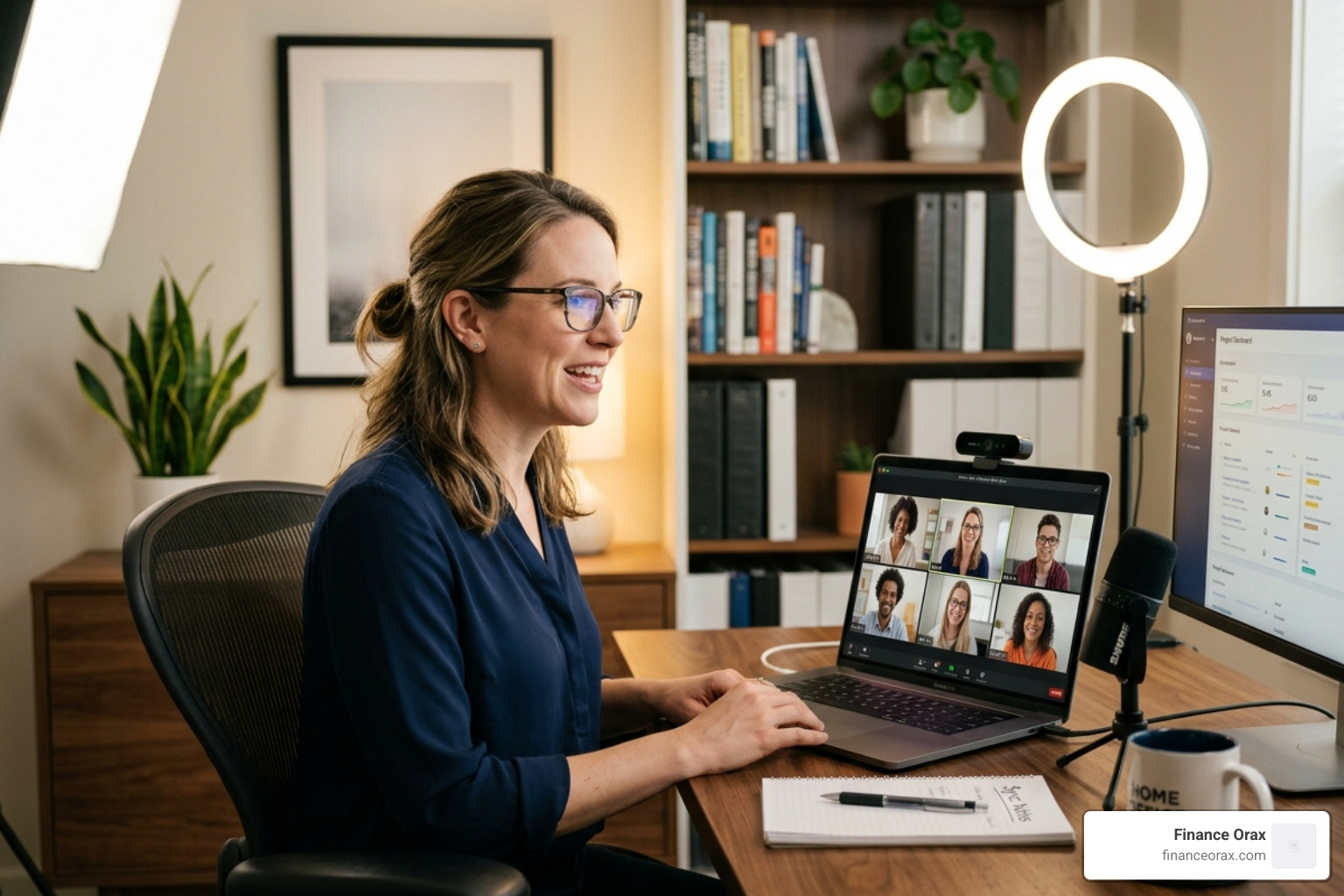
The Golden Rules of WFH Video:
- Face the Light: Never have a bright window behind you, or you’ll look like a silhouette in a witness protection program.
- The 45-Degree Rule: Place your key light (like a ring light) slightly above eye level and 45 degrees to the side.
- Color Temperature: Use “warm white” (3000-4000K) to look natural rather than washed out by clinical blue light.
For audio, avoid built-in laptop mics—they pick up every hum of your refrigerator. A simple USB condenser mic or a high-quality headset with a noise-cancelling boom mic makes a massive difference. If your room is echoey, adding a few acoustic panels or even a thick rug can significantly dampen the sound. We also love “bias lighting”—an LED strip behind your monitor—which reduces the contrast between your screen and the wall, saving you from evening headaches.
Organization and Work-Life Separation
The biggest challenge of WFH isn’t the work—it’s stopping the work. We believe the best wfh setup should be able to “disappear” at the end of the day.
If your office is in your living room, consider using neutral curtains to hide your desk after hours. This visual boundary helps your brain switch from “employee mode” to “home mode.” For smaller spaces, utility carts and pegboards are lifesavers. They allow you to maximize vertical space and keep your desk surface completely clear of clutter.
Cable management is the unsung hero of a stress-free environment. Use under-desk cable trays and Velcro ties to hide the “spaghetti” of wires. A clean desk isn’t just about aesthetics; it reduces the mental load and “friction” of starting your workday.
Strategic Budgeting for Your Home Office
Building your setup is a marathon, not a sprint. We suggest a strategic budget allocation: 45% on the desk, 35% on the chair, and 20% on peripherals.
- Budget Build (~$500): Focus on a solid standing desk converter, a refurbished ergonomic chair (like an Aeron from a marketplace), and a basic 1080p ring light.
- Professional Build (~$1,500): This is the “sweet spot.” Includes an electric standing desk, a mid-range ergonomic chair with 4D armrests, a 32-inch 4K monitor, and a dedicated USB mic.
- Executive Build (~$3,000+): The ultimate future-proof setup. Think Thunderbolt 5 docks, OLED monitors with perfect blacks, and high-end chairs with 15-year warranties.
Regardless of your budget, don’t ignore internet redundancy. In 2026, a 50 Mbps down / 10 Mbps up connection is the bare minimum. We recommend having a backup 5G hotspot and a Uninterruptible Power Supply (UPS). A UPS can keep your Wi-Fi running for up to 3 hours during a blackout—saving you from a dropped call during an important presentation. Finally, always follow the 3-2-1 backup strategy for your data: 3 copies, 2 different media, 1 offsite (cloud).
Frequently Asked Questions about WFH Setups
Is a standing desk worth the investment in 2026?
Absolutely. But only if you actually use it. The value isn’t in standing all day (which can cause leg fatigue), but in the ability to alternate. Switching positions every 45–60 minutes improves circulation and has been shown to reduce back pain by 32%.
What is the ideal internet speed for 4K video calls?
For a seamless 4K experience, aim for at least 200 Mbps symmetric (meaning both upload and download). However, latency (the “ping”) is more important than raw speed. Keep your latency under 30ms for lag-free conversations. Always use a wired Ethernet cable for the most stable connection.
How do I reduce background noise in a shared living space?
Beyond software like noise-suppression filters, physical barriers are key. Use a headset with a “cardioid” pickup pattern microphone that only hears what’s directly in front of it. Adding soft furnishings—curtains, rugs, or even a bookshelf full of books—will help absorb the sound of a partner or kids in the next room.
Conclusion
At Finance Orax, we believe that building the best wfh setup is about more than just buying gadgets. It’s about holistic routine-building. Your workspace should be a place that supports your professional growth while protecting your physical and mental wellness.
By investing in proper ergonomics, high-speed connectivity, and a clutter-free environment, you aren’t just making your workday easier—you’re making your life better. Sustainable productivity comes from a setup that works with you, not against you.
Ready to optimize the rest of your daily routine? More info about Finance Orax services can help you bridge the gap between a standard home office and a lifestyle-optimized sanctuary. Let’s build a workspace that actually works for you.
